
Congrats on taking the plunge on running Linux for your Digital Audio Workstation!
It would be a good idea to learn a few commands so that you can take advantage of one of the reasons for being on Linux, and that is performance and efficiency. One of the best ways of being efficient is by running commands at the command line.
While it is not entirely necessary to run commands at the command line, since you can do all of the basics on the windows side, you’ll find it much quicker getting things done such as installing applications, removing large files and directories and updating the system.
The one thing to always keep in mind about Linux, is it is case sensitive. A file named “test.txt” and “Test.txt” are not the same. Therefore, all files, directories and commands are case sensitive.
BASIC COMMANDS
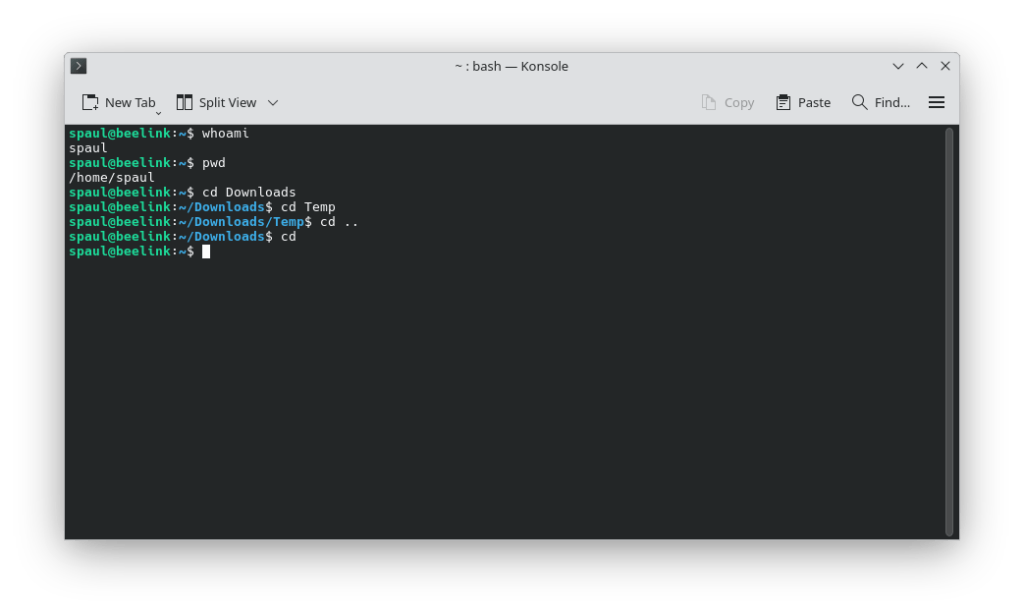
$ man >>> typing the word man before a command will give you help on how to use the command
$ whoami >>> displays your user name
$ pwd >>> prints the current directory you are in
$ clear >>> clear the screen
$ cd >>> used to change directories
$ cd .. >>> (CD DOT DOT) will move you down one directory
$ cd >>> on its own will bring you back to the home directory from wherever you are
$ ls >>> will list the contents of a directory
$ ls -l >>> will list detailed contents of a directory (permissions, group, file size, date)
$ date >>> will print the current date and time
$ ip a >>> will list your network card information including your current ip address
$ rm >>> will delete the file listed after the command
$ rm -r >>> will delete the directory and all sub-directories following the -r option
$ chmod >>> add permissions to a file
ADMIN PRIVILEGES
Like Windows and Mac, there will be frequent updates. You will be notified by an icon on the main toolbar that an update is required. These updates can be run from the Discover app but will be much easier from the command line and you have the added advantage of seeing what is being updated.
In order to do any “system” type functions, such as updating the system or installing applications, your account will need to be part of the super user group.
UBUNTU PRIVILEGES
For Ubuntu Studio installations, your user account should already be in the super user group by default. To check, open the command line application called, Konsole, located under the System menu or type CTRL + ALT + T and type the following at the prompt:
$ groups
You should see the name sudo in the list. This means you are in the super user group.
spaul cdrom floppy sudo audio
DEBIAN PRIVILEGES
If you installed Debian, as you went through the Linux install, you were asked to create a password for the root user as well as creating your own personal account.
Never log in as root and always log with your user account. You could do serious damage to your system by logging in as root because it can do anything such as deleting the entire system in one command.
Because some commands require root, such as updating the system and installing packages, you can add your user to the super user group as a safe guard. This will ensure that if you accidentally ran a root privileged command by accident, the system would do nothing.
To add your user to the super user group, first check to see if you are not already in the group. Open the Terminal application under the System menu (might be called Konsole). At the command line type the following:
$ groups
spaul cdrom floppy audio
If you don’t see the name “sudo” in the list, you are not in the super user group. Start by typing the following command to switch over to the root account. You will need to type in the root password you created when you installed Debain:
$ su –
You will be prompted for the password.
You will now be the user, root. Type the following command to add your user account to the super user group. Substitute <username> with your login name:
$ usermod -aG sudo <username>
Exit from the root account by typing exit:
$ exit
Type the groups command again and “sudo” should be in the list:
$ groups
spaul cdrom floppy sudo audio
UPDATING & INSTALLING
In order to update the system or install applications, you will need to add the super user group name “sudo” before the command as follows:
$ sudo apt upgrade
The same privilege is required to install an application. For example, to install the media player VLC, issue the following command:
$ sudo apt update
Followed by:
$ sudo apt install vlc
To remove an application, type:
$ sudo apt remove vlc
Another useful APT command that requires super user is cleaning up any packages that may have been left behind after an uninstall, and that are no longer required. A program name is not required because it will clean up everything:
$ sudo apt autoremove